BLACK FRIDAY
Lifetime 50% discount on all plans
Use code
YCBF25
Ycode logotype
Features
Layout & Design

Experience full design control to craft professional websites.

CMS

Organize your content your way for maximum impact.

Forms

Build contact, newsletter, and filter forms effortlessly.

SEO

Boost your website's SEO with optimized controls.

Interactions

Add some spark to your website with interactions.

Localization

Translate your website into multiple languages.

Resources
Templates

Customize any template to fit your style and needs.

Integrations

Connect Ycode with your favorite tools.

Customer stories

Explore how others create amazing sites using Ycode.

Academy

Start learning Ycode for free. Get answers to your questions.

Experts

Find experts to help with your website project.

Blog

No-code insights to help you build and design better projects.

Support
Help Center

Find step-by-step guides and answers in our knowledge base.

Contact

Contact us for urgent help.

Community

Connect and learn from others.

Pricing Partners
Log in Sign up
Help Center /
Get started

Using the canvas

Master navigating and controlling the canvas with tools for breakpoints, zooming, and more.

Canvas Controls

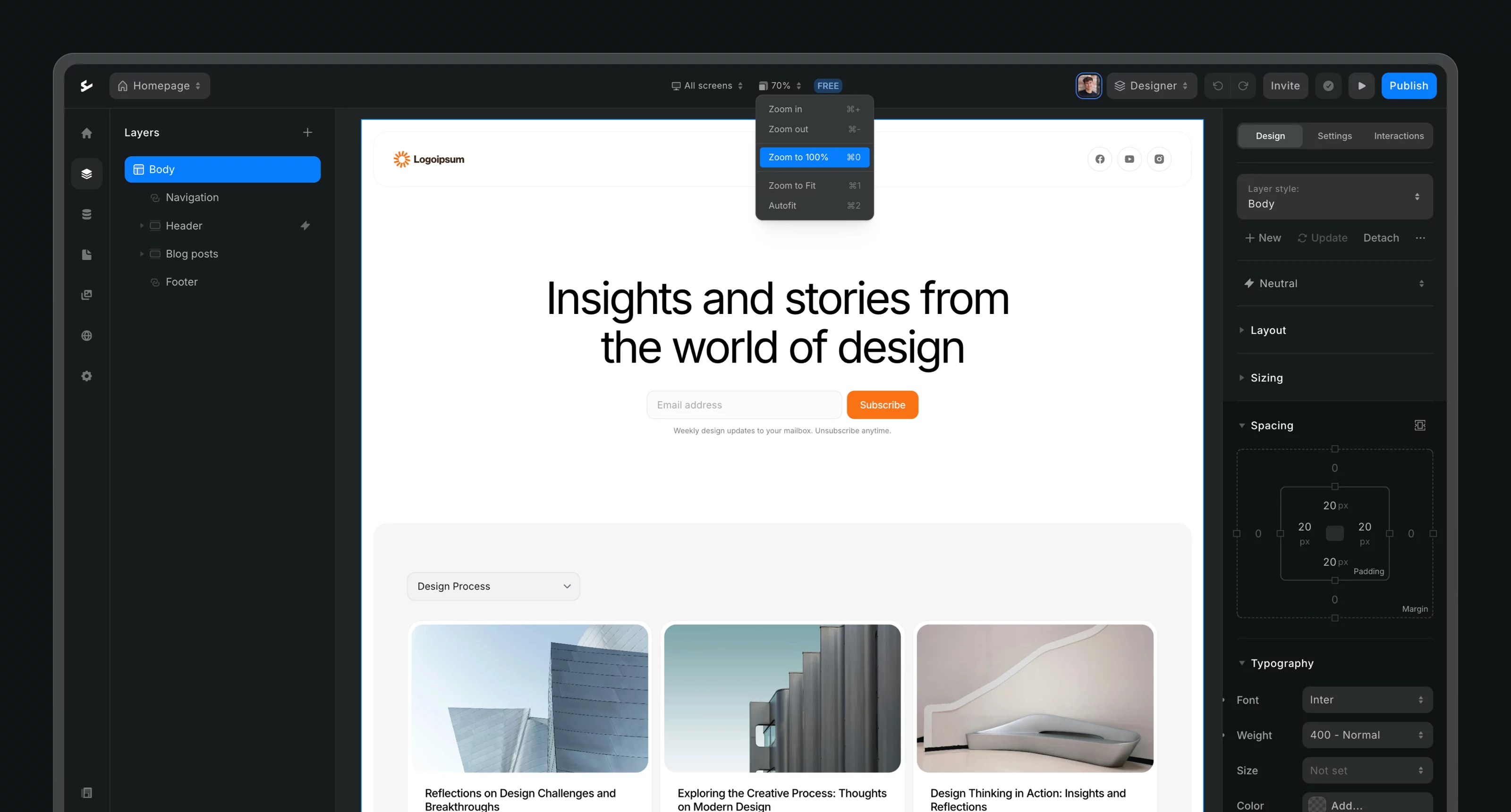
The top bar contains tools to switch breakpoints and zoom. On the right, the zoom menu provides shortcuts for zooming in and out.

Breakpoints

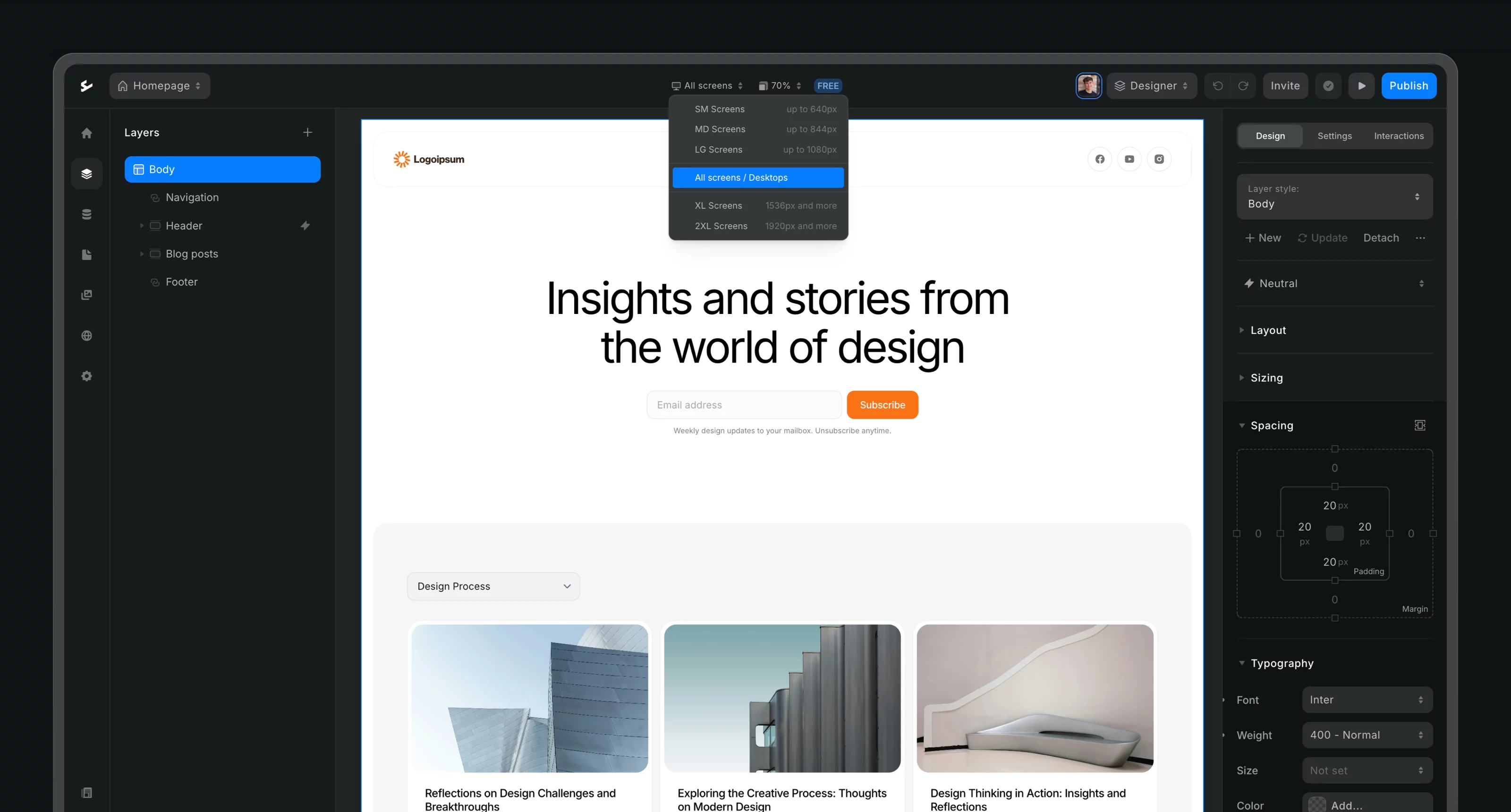
Easily adjust your design for different screen sizes using the dropdown menu to switch between breakpoints. Learn more about breakpoints here.
Zooming

By default, the zoom level is set to Auto-fit, which expands canvas to fit into your screen. To adjust, use the zoom percentage dropdown in the top bar or these shortcuts:

  • Mac: Press ⌘ CMD + to zoom in and ⌘ CMD - to zoom out.

  • Windows: Press CTRL + to zoom in and CTRL - to zoom out.

You can also zoom with:

  • Trackpad: Pinch or stretch two fingers.

  • Mouse: Hold ⌘ CMD (Mac) or CTRL (Windows) while scrolling.
Dark or Light Mode

Switch between dark and light builder modes:

  • Click the Ycode icon in the top left.

  • Go to Preferences > Themes and select your mode.

Keyboard Shortcuts

Keyboard shortcuts are a great way to enhance your productivity and streamline your workflow. Ycode offers several shortcuts to help you work more efficiently.

To access the full list of shortcuts:

  • Click the Ycode icon in the top left.

  • Go to Help > Keyboard shortcuts or learn more here.


Still need help?

Our support team is ready to help.

Contact support
Ycode logotype

Visual development platform for designers and agencies.

Features Design CMS Forms SEO Animations Localization
Product Updates Pricing Templates Integrations Roadmap Developer API
Company About us Services Blog Contact Brand resources
Learn Help Center Academy Community Customer stories
Partner Experts Partner program Become a Ycode expert
Compare Ycode vs. Webflow Ycode vs. Framer Ycode vs. Squarespace
Let’s keep in touch

Join our monthly email with no-code insights and Ycode updates.

Done!

Thank you for subscribing.


2019 - 2025 © Ycode. All rights reserved.
Terms & Policies Cookies settings